Quick Selector v 1.2

0/5,
0
votes
Changelog
latest
Version
v 1.2
9 months ago
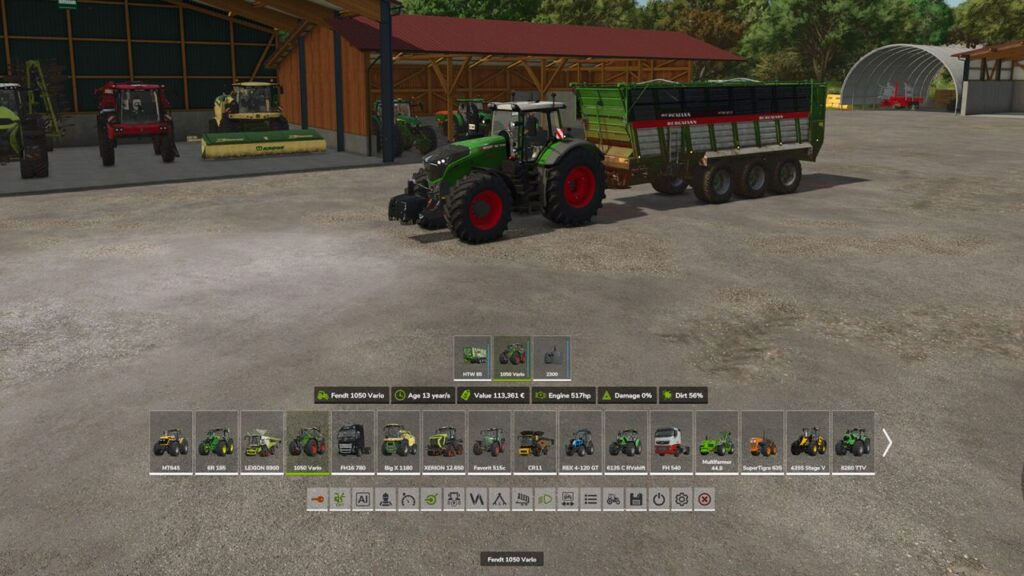
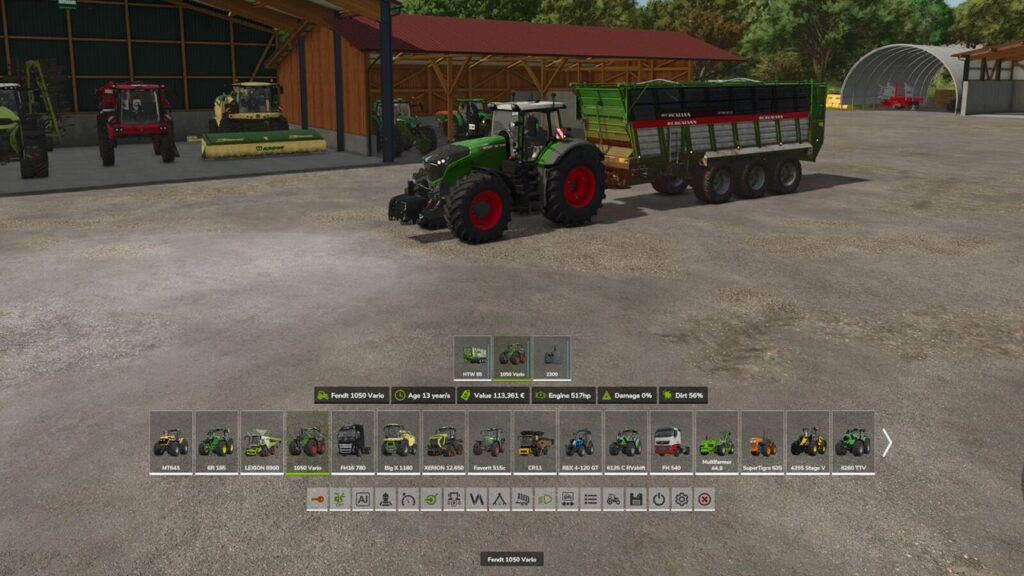
With its user-friendly interface, rapid Selector improves gameplay by providing rapid access to key car and game controls as well as other gaming features.
It includes a list of personal cars and implements, extra vehicle details, and the ability to click to activate certain vehicle or implement functions.
By default, the HUD may be accessed via customizable keys or a double right mouse click:
Keyboard: CTRL key on the right
#8211; Gamepad Press the "Arrow Down + Square" button on the PS or the "Arrow Down + X" button on the Xbox to open the HUD. Press the Item: button (A) on the Xbox or (X) on the PlayStation.
Important attributes:
Selectable automobiles: a list of owned automobiles with their associated tools in a paginated format
Vehicle controls include starting the engine, getting in and out of the car, turning on and off accessories, controlling the cruising speed, and operating tools like power on, folding, lowering, and unloading.
Vehicle Reordering: Moving cars around in the list changes their tab order as well.
Control the vehicle's lights, including the front and rear lights, beacon, and warning lights.
AI and Helpers: Hire assistants and open AI screens.
Game management includes opening menus, going to the store, saving the game, changing the settings, and closing it.
Crucial Information:
Controls: All keyboard, mouse, and gamepad inputs are utilized to interact with Quick Selector elements (clicking buttons, moving the pointer, and selecting a vehicle) while the HUD is active.
The only inputs left are the vehicle's brake and acceleration.
Gamepads: To avoid conflicts and enable faster access, it is advised to remap the default vehicle enter/exit input from (Square/X) to (Arrow Down + Square/X) and modify the HUD opening input from (Arrow Down + Square/X) to (Square/X).
Changelog: +
With new features and enhancements, Quick Selector 1.2 —–# Update 1.2 offers a significant makeover!
The whole list of owned or hired equipment (vehicles and attachments) may be seen and managed.
Attached tools and vehicle information are now only shown when you hover over a vehicle or an item to minimize on-screen clutter.
The player is teleported straight to the location of an attachable when they click on it.
In order to facilitate car identification, the list now displays each vehicle's design color.
To increase usability, an attached implement selection has been added above the fast buttons.
The vehicle/implement data screen now has many additional information, such as required power, fill level/capacity, mass, and operating width.
# To the list of Quick Buttons, new buttons (*) have been added:
*Power On:
* Change Seed
* Unload
* Change Tip Side
* Toggle Trailer Cover
* Time Scale
* Pause
* Realtime
* Increase
* Decrease
Open Menu | Toggle Help Text* (Keybindings menu at the top left)
*Shop* | Sell/Return Vehicle*
[1.0.1.0] Changelog:
Several quality enhancements were made, including: removing decorative (non-owned) cars from the vehicles list; fixing vehicle reorder issues that prevented certain vehicles from being saved in the proper order; fixing hud not rendering on specific widescreen resolutions; and more.
Credits: Excellence
It includes a list of personal cars and implements, extra vehicle details, and the ability to click to activate certain vehicle or implement functions.
By default, the HUD may be accessed via customizable keys or a double right mouse click:
Keyboard: CTRL key on the right
#8211; Gamepad Press the "Arrow Down + Square" button on the PS or the "Arrow Down + X" button on the Xbox to open the HUD. Press the Item: button (A) on the Xbox or (X) on the PlayStation.
Important attributes:
Selectable automobiles: a list of owned automobiles with their associated tools in a paginated format
Vehicle controls include starting the engine, getting in and out of the car, turning on and off accessories, controlling the cruising speed, and operating tools like power on, folding, lowering, and unloading.
Vehicle Reordering: Moving cars around in the list changes their tab order as well.
Control the vehicle's lights, including the front and rear lights, beacon, and warning lights.
AI and Helpers: Hire assistants and open AI screens.
Game management includes opening menus, going to the store, saving the game, changing the settings, and closing it.
Crucial Information:
Controls: All keyboard, mouse, and gamepad inputs are utilized to interact with Quick Selector elements (clicking buttons, moving the pointer, and selecting a vehicle) while the HUD is active.
The only inputs left are the vehicle's brake and acceleration.
Gamepads: To avoid conflicts and enable faster access, it is advised to remap the default vehicle enter/exit input from (Square/X) to (Arrow Down + Square/X) and modify the HUD opening input from (Arrow Down + Square/X) to (Square/X).
Changelog: +
With new features and enhancements, Quick Selector 1.2 —–# Update 1.2 offers a significant makeover!
The whole list of owned or hired equipment (vehicles and attachments) may be seen and managed.
Attached tools and vehicle information are now only shown when you hover over a vehicle or an item to minimize on-screen clutter.
The player is teleported straight to the location of an attachable when they click on it.
In order to facilitate car identification, the list now displays each vehicle's design color.
To increase usability, an attached implement selection has been added above the fast buttons.
The vehicle/implement data screen now has many additional information, such as required power, fill level/capacity, mass, and operating width.
# To the list of Quick Buttons, new buttons (*) have been added:
*Power On:
* Change Seed
* Unload
* Change Tip Side
* Toggle Trailer Cover
* Time Scale
* Pause
* Realtime
* Increase
* Decrease
Open Menu | Toggle Help Text* (Keybindings menu at the top left)
*Shop* | Sell/Return Vehicle*
[1.0.1.0] Changelog:
Several quality enhancements were made, including: removing decorative (non-owned) cars from the vehicles list; fixing vehicle reorder issues that prevented certain vehicles from being saved in the proper order; fixing hud not rendering on specific widescreen resolutions; and more.
Credits: Excellence
Version
v 1.0.2
11 months ago
With its user-friendly interface, rapid Selector improves gameplay by providing rapid access to key car and game controls as well as other gaming features.
It includes a list of personal cars and implements, extra vehicle details, and the ability to click to activate certain vehicle or implement functions.
By default, the HUD may be accessed via customizable keys or a double right mouse click:
Keyboard: CTRL key on the right
"Gamepad" Press the "Arrow Down + Square" button on the PS or the "Arrow Down + X" button on the Xbox to open the HUD. Press the Item: button (A) on the Xbox or (X) on the PlayStation.
Important attributes:
Selectable automobiles: a list of owned automobiles with their associated tools in a paginated format
Vehicle controls include starting the engine, getting in and out of the car, turning on and off accessories, controlling the cruising speed, and operating tools like power on, folding, lowering, and unloading.
Vehicle Reordering: Moving cars around in the list changes their tab order as well.
Lights Control: Turn on the car's lights, all lights, front and rear lights, beacons, and warning lights.
– AI and Helpers: Hire assistants and open AI screens.
Game management includes opening menus, going to the store, saving the game, modifying settings, and shutting down.
Crucial Information:
Controls: All keyboard, mouse, and gamepad inputs are utilized to interact with Quick Selector elements (clicking buttons, moving the pointer, and selecting a vehicle) while the HUD is active.
The only inputs left are the vehicle's brake and acceleration.
Gamepads: To avoid conflicts and enable faster access, it is advised to remap the default vehicle enter/exit input from (Square/X) to (Arrow Down + Square/X) and modify the HUD opening input from (Arrow Down + Square/X) to (Square/X).
Changelog: +
Changelog [1.0.1.0]:
Numerous quality improvements
Credits: Excellence
It includes a list of personal cars and implements, extra vehicle details, and the ability to click to activate certain vehicle or implement functions.
By default, the HUD may be accessed via customizable keys or a double right mouse click:
Keyboard: CTRL key on the right
"Gamepad" Press the "Arrow Down + Square" button on the PS or the "Arrow Down + X" button on the Xbox to open the HUD. Press the Item: button (A) on the Xbox or (X) on the PlayStation.
Important attributes:
Selectable automobiles: a list of owned automobiles with their associated tools in a paginated format
Vehicle controls include starting the engine, getting in and out of the car, turning on and off accessories, controlling the cruising speed, and operating tools like power on, folding, lowering, and unloading.
Vehicle Reordering: Moving cars around in the list changes their tab order as well.
Lights Control: Turn on the car's lights, all lights, front and rear lights, beacons, and warning lights.
– AI and Helpers: Hire assistants and open AI screens.
Game management includes opening menus, going to the store, saving the game, modifying settings, and shutting down.
Crucial Information:
Controls: All keyboard, mouse, and gamepad inputs are utilized to interact with Quick Selector elements (clicking buttons, moving the pointer, and selecting a vehicle) while the HUD is active.
The only inputs left are the vehicle's brake and acceleration.
Gamepads: To avoid conflicts and enable faster access, it is advised to remap the default vehicle enter/exit input from (Square/X) to (Arrow Down + Square/X) and modify the HUD opening input from (Arrow Down + Square/X) to (Square/X).
Changelog: +
Changelog [1.0.1.0]:
Numerous quality improvements
Credits: Excellence